Alex's Photoshop Workshop
- Thomas Hughes
- Nov 15, 2022
- 1 min read

In this workshop, the main premise was to go over things that we already knew how to do but making sure we did everything efficiently. Photoshop is mainly used for editing photos, be these fine adjustments or cutting things out.
- Ctrl > L brings up the 'levels' windows to adjust lighting
- Colour balance, hue and saturation are other key elements you can change in an image
- Ctrl > I also inverts colours
- Hue can only really be used when the image has 1 or two colours that aren't natural (Shown what not to do in Figure 1)
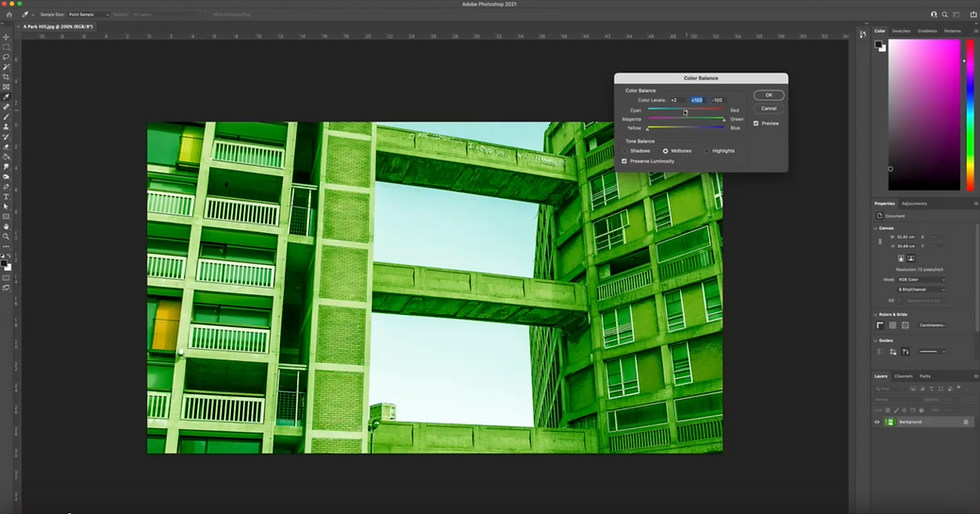
Figure 1
Looking now at the dodge, blur and Burn tool, you can use these to edit on top of an image.
- To resize the brush, you can use [ to make it smaller and ] to make it larger
The blur tool helps to make bokeh in the background whilst the burn and dodge tool help to lighten and darken an image in certain spots.
The spot healing brush is another useful tool to help edit an image. By hitting 'J' the spot heal tool opens and you simply brush over the area you want to heal as shown in Figure 2. This is much easier than the clone tool where it's less accurate as by alt clicking, you can clone other sections on top of the bit you'd like to cover over.

Figure 2


Comments